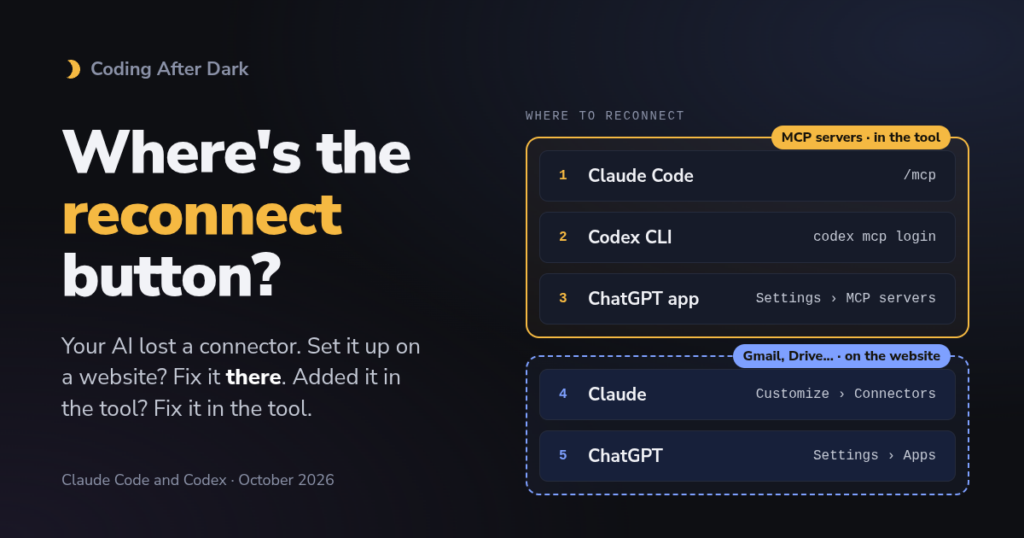
The other day co-worker of mine was struggling where his chat session in Claude kept throwing errors that Atlassian wouldn’t connect. After a few rounds of confusion he reached out now what to do. We walked through the process got him reconnected and brought up a point up of how to you know to do this.
First: which kind of connector broke?
There are two kinds, and they get fixed in different places.
- Account connectors: fix them on the website or settings page. These are the ones you sign in to once on your Claude or ChatGPT account, like Gmail, Google Calendar, Drive or Notion. Anthropic calls them connectors. OpenAI calls them apps, and they now mostly come bundled inside plugins.
- MCP servers: fix them inside the tool. MCP (Model Context Protocol) is the shared plug standard these tools use to talk to other services. An MCP server is one of those plugs that you added yourself, by pasting a web address or a command into the tool’s settings. Anthropic’s own docs put it this way: “Connectors are MCP servers with a graphical setup flow.”
| Where you work | Account connectors (Gmail, Drive…) | MCP servers you added |
|---|---|---|
| Claude Code in the terminal | /mcp, or claude.ai connectors page | /mcp → Reconnect or Re-authenticate |
| Claude desktop app | Customize → Connectors → Reconnect | No button yet: quit and reopen |
| Codex CLI | ChatGPT settings → Plugins | codex mcp login <name> |
| Codex in the ChatGPT desktop app | Settings → Plugins → ••• | Settings → MCP servers → Authenticate |
Claude Code in the terminal
This is the easiest of the four, because there’s one command for almost everything.
Step 1: Open the MCP panel
Type this inside Claude Code:
/mcpYou get a list of every server and connector, each with a status. Account connectors from claude.ai show up here too, with a claude.ai label.
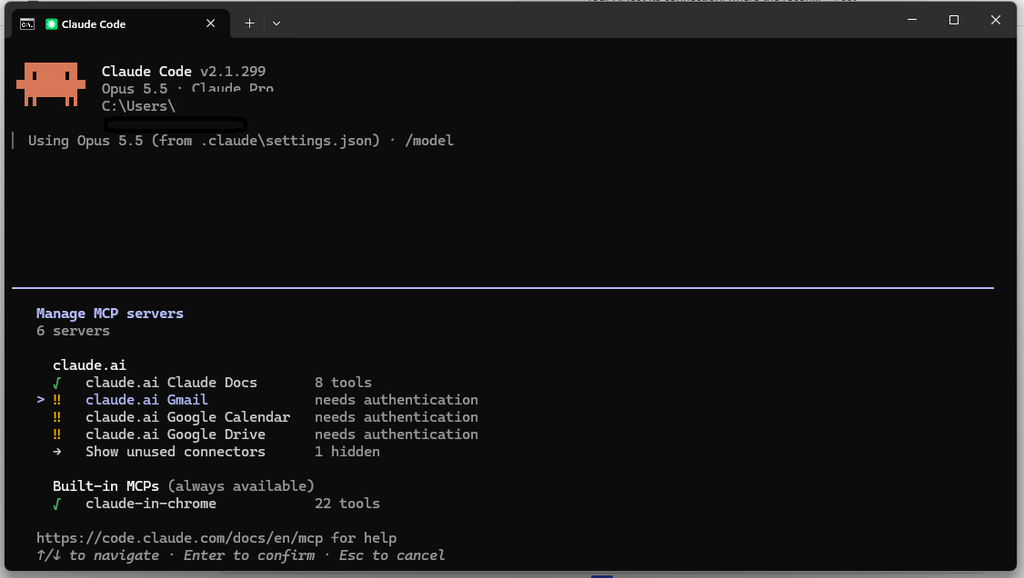
Step 2: Read the status
- ✔ Connected: all good.
- ! Needs authentication: it wants you to sign in again.
- ✘ Failed to connect or ✘ Connection error: it couldn’t reach the server.
- cached … connects on first use: not broken. It connects the first time Claude needs it.
- ⊘ Disabled for this project: someone (maybe you) switched it off. Turn it back on in
/mcp.
Step 3: Pick the server and the fix
Select the server, then choose Reconnect to try again, or Authenticate (it says Re-authenticate if your old sign-in was rejected). Your browser opens. Sign in, approve, and come back.
If several are broken, this retries all of them in one go:
/mcp reconnect allIf you’d rather stay in your normal terminal
The same fixes work as shell commands, outside a Claude session, according to Anthropic’s MCP docs:
claude mcp list
claude mcp get my-server
claude mcp login my-server
list shows the health of every server, get shows what’s wrong with one, and login signs in again. Swap my-server for your server’s name.
When Claude Code can’t see your connectors at all
If your claude.ai connectors are simply missing from /mcp, the problem is usually how you’re signed in.
- You’re using an API key. Connectors only load when you sign in with a Claude subscription. An API key (a password-like code used for pay-as-you-go access) hides them. Type
/statusto see how you’re signed in, then/login. - Gmail, Google Calendar or Microsoft 365. These can’t be signed in from the terminal. Reconnect them on the claude.ai connectors page.
- “session token rejected”. Reconnecting the connector won’t fix this one. Run
/loginfirst, then reconnect it in/mcp. - You never used it. Connectors you’ve never signed in to hide under Show unused connectors.
The Claude desktop app
Account connectors: there’s a Reconnect button
In the Claude desktop app (and on claude.ai), click Customize in the sidebar, then Connectors. Your connectors are listed under Your connectors. If Claude has lost access to one, its row shows Reconnect. Click it and sign in again in your browser.
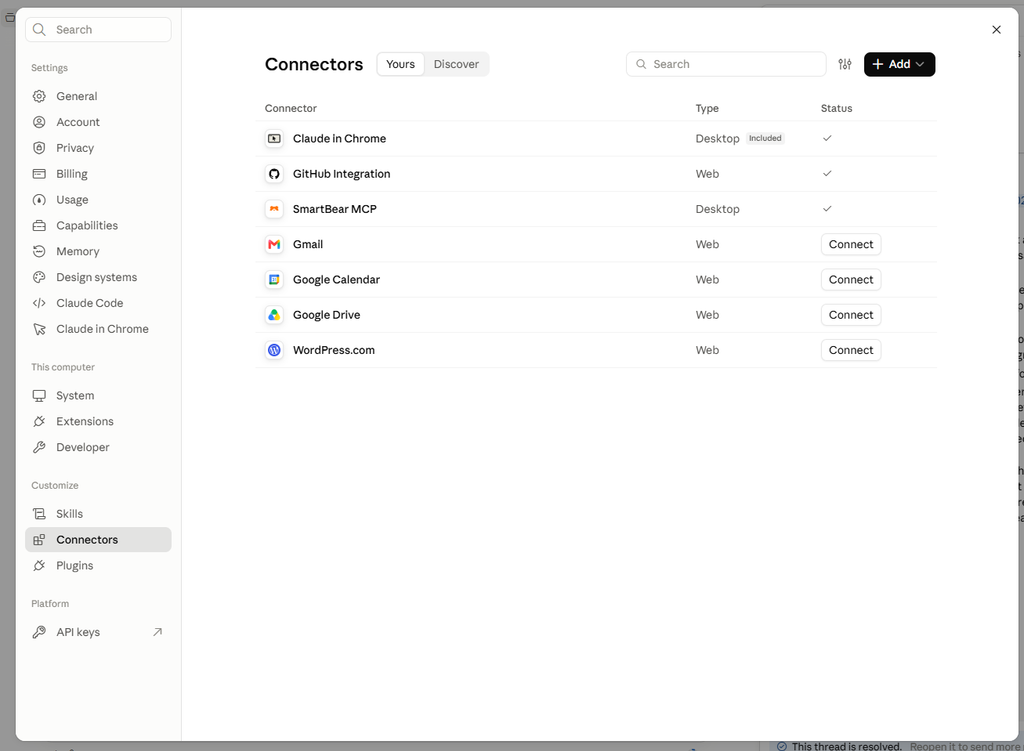
On the same page, Disconnect signs Claude out of that service, and the three-dot menu → Remove takes it off your account completely. Anthropic’s connectors guide has the full walkthrough.
Codex CLI
Codex is OpenAI’s coding agent. The CLI (command-line interface, the version you type into a terminal) keeps its fixes under one command, codex mcp, as shown in OpenAI’s Codex MCP docs.
Step 1: See what’s set up
codex mcp listInside a running Codex session, /mcp shows the servers that are active right now.
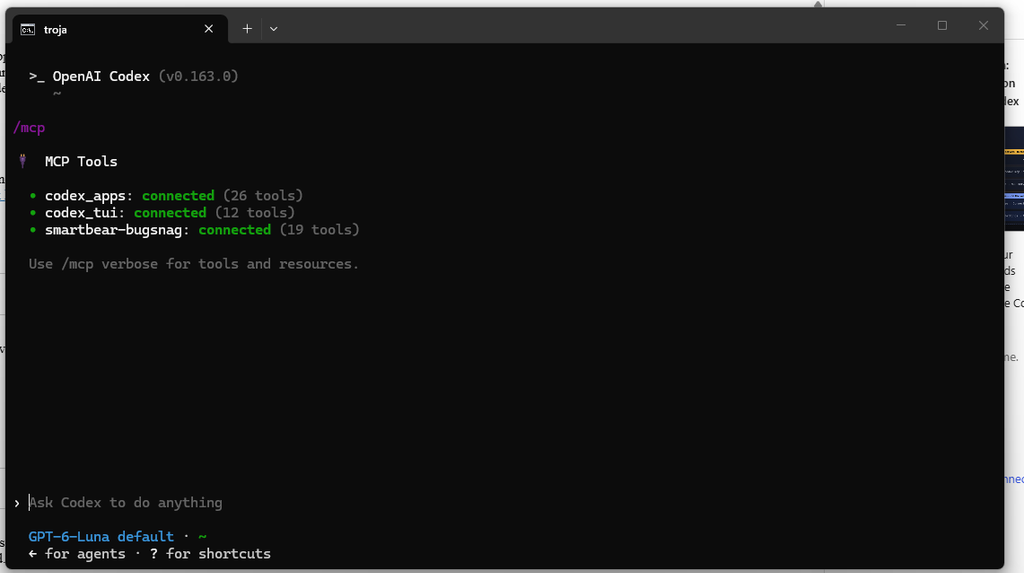
Step 2: Sign in again
codex mcp login my-serverYour browser opens, you approve, done. This works for servers on the web that use OAuth, the “sign in and approve” flow that lets a tool get access without ever seeing your password. If a server keeps misbehaving, codex mcp logout my-server clears the old sign-in so you can start fresh.
If Codex itself is signed out
Sometimes the problem is your Codex sign-in, not the server. These three commands cover it:
codex login status
codex logout
codex login
Plugins
Type /plugins to open the plugin browser. Select an installed plugin and press Space to switch it on or off.
Codex in the ChatGPT desktop app
MCP servers: Settings → MCP servers
Open Settings, then Integrations -> Plugins. Servers that need a sign-in are marked. Click Authenticate, sign in, and come back. If you added or changed a server, click Restart so it takes effect. You can also type /mcp in the message box to see what’s connected.
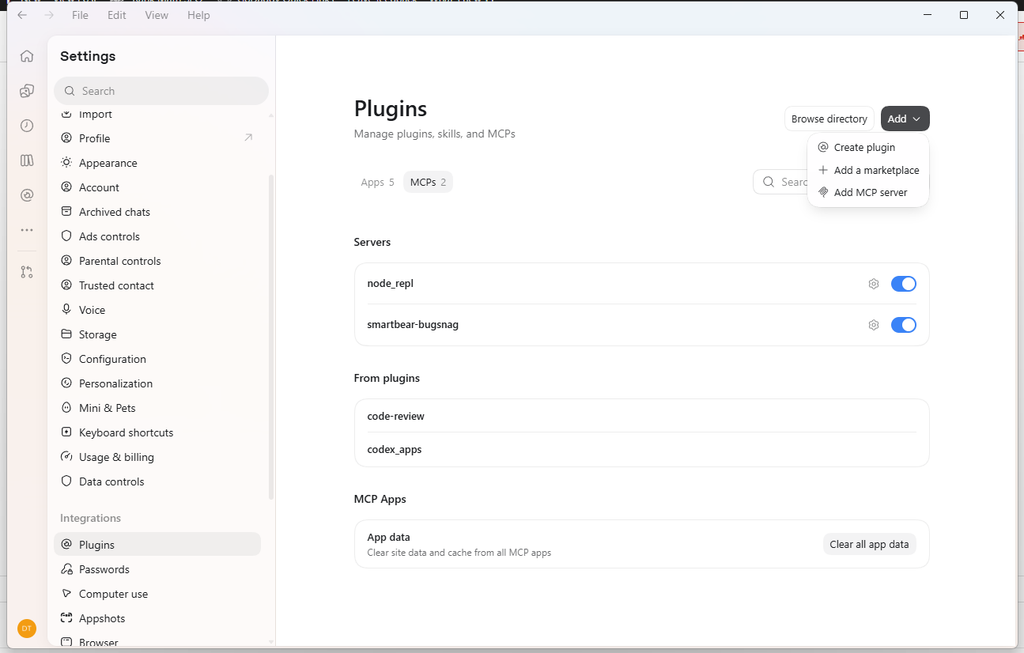
The desktop app, the CLI and the code editor extension share one settings file, so a server you fix in one shows up fixed in the others.
What to watch out for
- Reconnecting in the wrong place. Re-authenticating an MCP server won’t fix an account connector, and the other way round. When in doubt, check the table at the top.
- It “worked” but still fails. An already-open session can hang on to the old sign-in. A Codex user reported exactly this on GitHub (issue #29279, which we haven’t been able to check the status of): the login succeeded, but the open thread kept failing until they started a new one. If reconnecting didn’t help, start a fresh session.
- The wrong sign-in hides everything. In Claude Code, an API key makes every claude.ai connector disappear. It looks like the connectors broke, but they didn’t.
- Names keep moving. OpenAI went from connectors to apps to plugins. Anthropic’s docs say both “Customize” and “Settings” for the connectors page. Look for the word “Connectors”, “Apps” or “MCP” in your settings and you’ll find it.
- Web sessions can’t sign in. Claude Code running in the cloud can’t open the sign-in page. Reconnect on claude.ai first, then start the session.
After After Dark To Try
- Read your status words. Run
/mcpin Claude Code orcodex mcp listin a terminal, and see which of your connectors are green, red or just waiting. - Clean up your connectors page. Open Customize → Connectors in Claude or Settings → Apps in ChatGPT and disconnect one you don’t use anymore. Fewer connections, fewer things to break.
- Practise before you need it. Pick one MCP server, sign out (
claude mcp logout my-serverorcodex mcp logout my-server), then sign back in. Next time it drops, you’ll know the steps without searching.
Sources
Official (primary sources)
- Claude Code docs: MCP:
/mcpactions, status words, shell commands, automatic retries, claude.ai connectors in Claude Code. - Claude Code docs: Desktop: connectors in the desktop app, the + menu, shared MCP setup files.
- Claude Code changelog: version 2.1.302 fix about reconnect options in the desktop app.
- Get started with connectors: Customize → Connectors, Reconnect, Disconnect, Remove, per-chat toggles.
- Codex docs: MCP:
codex mcpcommands and the desktop app’s Settings → MCP servers. - Codex docs: commands:
codex login,codex logout,codex mcp loginandlogout. - Codex docs: plugins:
/plugins, and why uninstalling a plugin doesn’t disconnect its app. - Codex releases on GitHub: current Codex CLI version.
- OpenAI help: Connecting and managing app accounts in ChatGPT: Reconnect and Disconnect steps for apps. Not opened: the page blocked us, so we used search summaries.
- OpenAI ChatGPT release notes: the new ChatGPT desktop app with Chat, Work and Codex. Not opened directly; quoted via releases.sh below.
Community reports
- GitHub issue #54136, anthropics/claude-code: no per-server reconnect in the Claude desktop app, and the quit-and-reopen workaround.
- GitHub issue #76062, anthropics/claude-code: the duplicate request, also closed.
- GitHub issue #29279, openai/codex: stale sign-in in an open Codex desktop thread. Not opened: from search results.
News and explainers
- releases.sh: Chat, Work and Codex merged into a single desktop app: the July 9 merge, quoting OpenAI’s release notes.