Written November 20, 2026. Scheduled tasks are still changing quickly, so a menu or two may have moved by the time you read this.
Most mornings start the same way. You open your email, then your calendar, then Slack, and twenty minutes later you still haven’t decided what to do first.
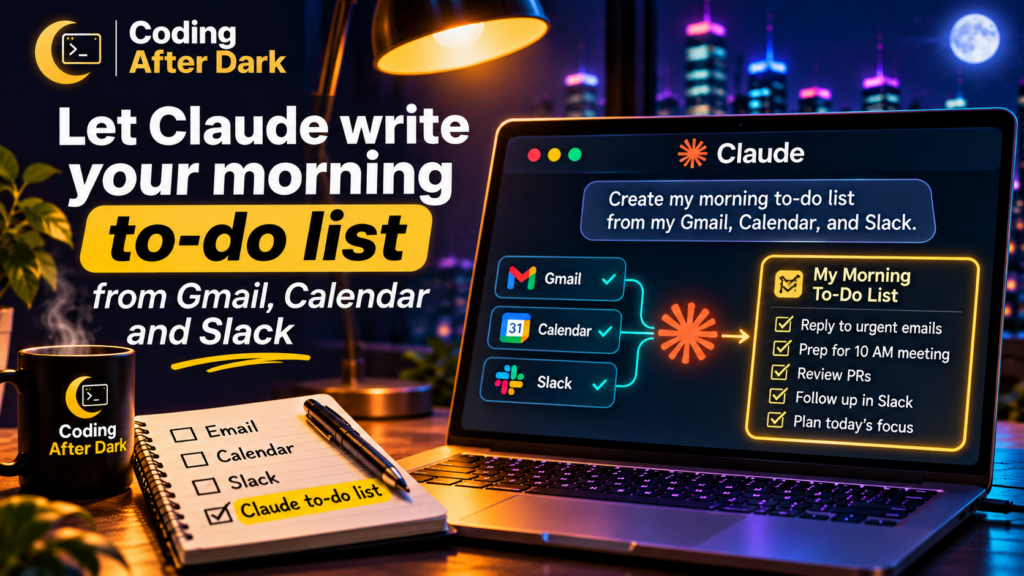
Claude can now do that first pass for you, on a timer. Think of a coffee maker you load the night before. You tell it once what you want, and it can have a list ready when you sit down on a weekday.
This post walks through the setup using Gmail, Google Calendar and Slack. Allow extra time if your workplace needs to approve a connector. I’ll also cover the things that tripped people up, because a couple of them are easy to miss and one of them is a real safety point.
What you need before you start
You can schedule this briefing in Claude Cowork. If your version of Claude combines chat and Cowork, you can start in any conversation. Either way, Claude can use your connected apps and bring back a list.
You need a paid Claude plan. Anthropic’s help article says scheduled tasks are on Pro, Max, Ultra, Team and Enterprise, and they’re not on the free plan. You can set one up in the Claude desktop app or, if your plan and workspace settings allow it, on the web.
A cloud-based briefing can run while your laptop is asleep. For this one, use the online connectors and leave the local folder field empty. Selecting a local folder turns on “Require this computer” where that option is available. Those runs need your computer awake with Claude Desktop open.
If you use Claude through work, you may need an admin to switch a few things on first. On Team and Enterprise plans an admin controls Cowork, and an owner has to enable the Google and Slack connectors before you can sign in to them.
Setting it up
Step 1: Connect Gmail, Calendar and Slack
A connector is the link between Claude and another service. In the Claude app, open Customize, then Connectors, and connect Gmail and Google Calendar by signing in with your Google account. Anthropic says these two are available to everyone.
In Customize, open Connectors and look for the Slack connector. Connect your work account and try searching for a mention you can already see in Slack. Your workspace may require an admin to approve the connection. If Slack is unavailable, start with Gmail and Calendar and remove Slack from the prompt below. You can add it later.
Step 2: Open Scheduled and start a new task
In the Cowork interface, click Scheduled in the left sidebar, then New task. You get two choices. “Create with Claude” lets you describe what you want in your own words and answer a few questions. “Set up manually” gives you a form.
For a first task I’d use Create with Claude. If you see a single chat box with no Chat or Cowork switch, paste the prompt below into a conversation and tell Claude what time to run it.
Step 3: Paste the prompt
This is the prompt we’re using. Swap in your own time zone.
Every weekday morning, make me a to-do list for today. My time zone is [zone].
Look at: Gmail since 6 pm yesterday, my Google Calendar for today, and Slack
messages and threads that mention me since 6 pm yesterday.
Give me four short sections: Today's calendar, Emails that need a reply,
Slack that needs me, and Top 3 things to do first (with why).
Keep it to one screen. Skip newsletters and notifications.
If you can't reach Gmail, Calendar or Slack, say so at the very top.
Never send, reply, post, accept or change anything. Read only.
Every line is there for a reason. Each run opens its own session, so the prompt has to name the sources and the time window itself. The fixed sections keep the list the same shape every day, which makes it quick to scan. And the last two lines are the important ones. I’ll come back to both.
Step 4: Pick weekdays and a time
Claude will suggest a name, a schedule and the instructions. Check them over. The frequency choices are hourly, daily, weekly, weekdays or manual. Pick weekdays, set it for a little before you usually sit down, and click Schedule. If you filled out the manual form, click Save.
Don’t pick hourly for this. It’s a morning list, and every run uses some of your plan’s allowance.
Step 5: Run it once while you’re watching
Check the task’s approval mode before its first run. Choose Manual if your account offers it. In Auto mode, some connector actions can go ahead without prompting you. In Manual, a tool that needs approval may pause the morning run or get skipped if you’re away.
Open the task under Scheduled and run it yourself. If Claude asks to search Gmail, read your calendar or look up Slack messages, check the tool name before choosing “Allow for all scheduled runs.” Decline requests to send a message or change an event. Then check that the list includes something you recognize from each source.
Step 6: Find your list
Each run is its own session, and finished ones show up under Scheduled in the sidebar. Open the latest one and there’s your list. You can reply to it like any other chat, so “tell me more about the second email” works.
Keep it read-only
The Gmail connector isn’t just a reader. According to Anthropic’s own list it can “send, reply to, and forward emails”, and the Calendar one can create and delete events. Your morning list needs none of that.
Why does it matter? Because anyone can send you an email, and Claude reads your email. Someone can hide instructions in a message hoping the AI will follow them. This trick is called prompt injection, and it’s a bit like a stranger slipping a note into your in-tray that says “boss says wire the money”. Anthropic explains the risk in its safety guide for Cowork. As Engadget reports, researcher Simon Willison says there’s still no reliable way to prevent every such attack.
Set the limits in Claude as well as in the prompt. Under Customize, open each connector and check Permissions. Block tools that can send email, post to Slack or change calendar events wherever your settings allow it. If you need those tools for other work, choose “Always ask” where available and decline write requests from the briefing.
Anthropic stores material retrieved from Google with the conversation and says it excludes Google connector data from model training. There’s a wrinkle for personal accounts that opt into training. Text you paste from Google yourself, and Claude replies containing details from those connectors, may be used to improve the models. Check your account settings and your employer’s policy before connecting a work inbox.
What to watch out for
The sneakiest problem is a run that says it worked when it didn’t. In one report on GitHub, a user’s hourly email task showed as successful for eight runs in a row while doing nothing at all. The report documents the missed emails. It doesn’t establish what caused them. It’s the reason the prompt has that line about saying so at the top if a source can’t be reached. An honest “I couldn’t read Gmail today” beats a cheerful empty list.
Sign-ins also drop from time to time. If your list suddenly has no email section, check the run for an access error. If Gmail asks you to sign in again, reconnect it under Customize, then Connectors.
It uses your allowance. Anthropic says multi-step tasks “use more of your usage than a quick question.” One Max subscriber measured an hourly task and found roughly 109,000 to 138,000 cache-creation tokens in the logs for individual runs that produced little output. Those counts describe context processing. The logs don’t show what the subscriber was billed or what your briefing will use. Once a weekday is a very different thing from every hour, but check your usage page after the first week anyway.
It can miss things. Claude searches your inbox, it doesn’t read every message, and in a big messy mailbox something can slip past. Treat the list as a head start. For the first week or so, glance at your inbox as well and see how the two compare.
And it isn’t an alarm clock. Runs can start late. For a to-do list that’s fine. I wouldn’t hang anything with a hard deadline on it.
After Dark: Try it yourself
- Set up the task with only Gmail and Calendar tonight, and press run once so you can review any permission prompts while you’re at your desk.
- Send yourself a test email after 6 p.m. the evening before a scheduled run with a clear ask in it, like “Can you confirm Friday?” On the next scheduled morning, check whether it made the list.
- Put a reminder in your calendar for a week from now to look at your usage and decide whether the list has earned its place.
Sources
Official (primary sources)
- Schedule recurring tasks in Claude Cowork, Anthropic’s help article. Used for the setup steps, frequencies, plans, where tasks run and how approvals work.
- Get started with Claude Cowork. Used for which plans and apps have Cowork, and the usage note.
- Use Google Workspace connectors. Used for what the Gmail and Calendar connectors can do, and the privacy statement.
- Slack connector and Slack’s guide to connecting AI tools. Used for looking up workspace messages from Claude.
- Use Claude Cowork safely. Used for the prompt injection example.
- Build a daily briefing across your tools, Claude Academy. Anthropic’s own briefing example, which we compared our prompt against.
User reports
- GitHub issue 89811. One user’s report of runs that succeed without doing anything.
- GitHub issue 93568. One user’s token measurements for an hourly task.
- GitHub issue 55634. One user’s report of Gmail sign-ins dropping.
- GitHub issue 91758. One user’s report of a late-starting run.
News and explainers
- Engadget on the risks of letting Claude manage email. Discusses Simon Willison’s warning about prompt injection.
- Inbox and calendar on autopilot with Claude, dev.to. Used for the point that search-based access can miss messages.
- Coworkinsider on scheduled tasks. Used for the first-run permission advice and writing prompts that stand alone.
- Claude Cowork cloud scheduled tasks, AI Blew My Mind. Used for the move from local to cloud runs.